
Coomer is straightforward once you understand how the directory is structured and what each section of the platform does. This guide covers everything from opening the platform for the first time to finding specific creators, navigating profiles, and getting the most out of the search system. No account is required for any of the steps on this page.

Before You Start — What You Need
Using Coomer requires nothing beyond a standard web browser. No account, no registration, no personal information, and no payment. The platform is fully accessible to anyone who can reach the domain.
Before visiting the platform two precautions are worth having in place. An ad blocker like uBlock Origin eliminates the majority of the advertising risk the platform carries. A VPN protects your connection from the IP harvesting scripts that run alongside the advertising infrastructure. Neither is mandatory to browse but both are strongly recommended. The full explanation of why is in the Coomer Safety Guide.
If the platform is not loading at all before you start, the issue is likely a regional ISP block rather than genuine downtime. A VPN resolves this immediately. The full troubleshooting guide is on the linked page.
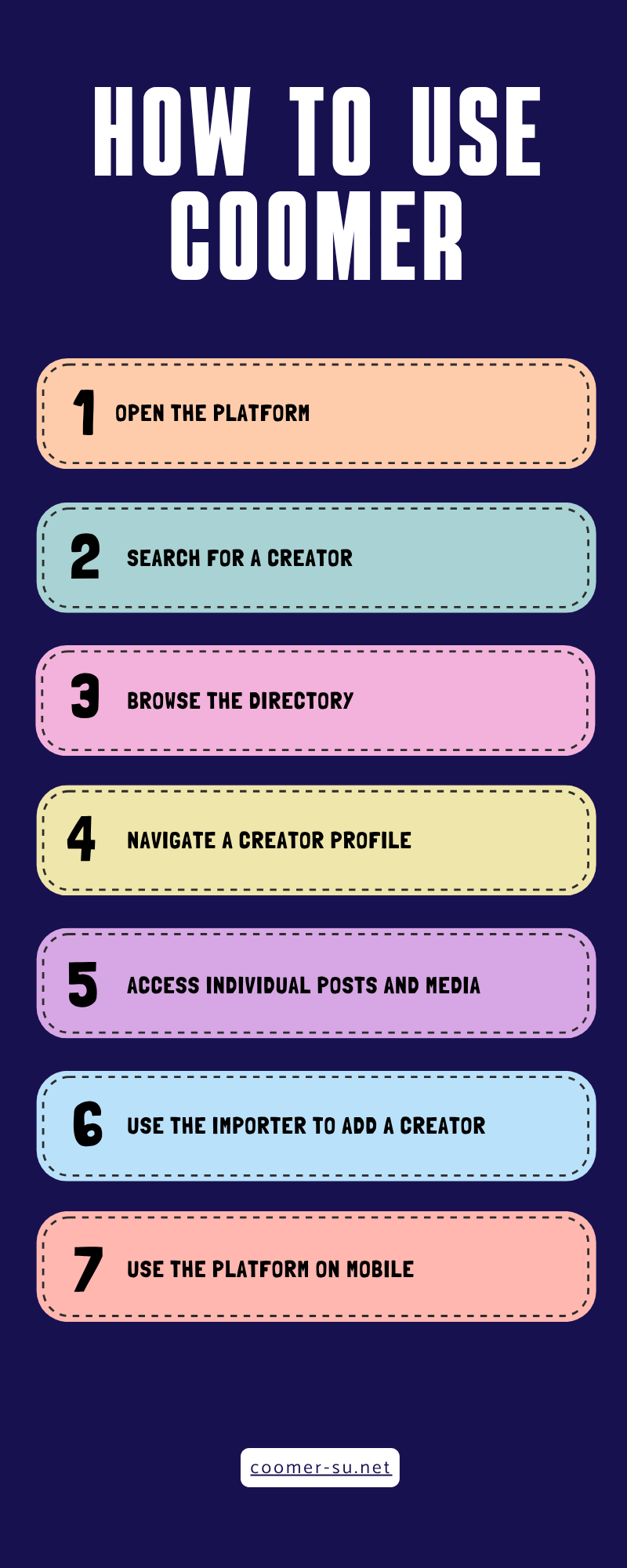
Step 1 — Open the Platform
Type the current Coomer domain into your browser address bar and the homepage loads immediately. The platform does not redirect you to a login page or ask for any information before showing you the directory.
The homepage displays several sections on first load.
What You See on the Homepage
The search bar sits prominently near the top of the page. This is the fastest way to find a specific creator if you know their name or username.
The source platform tabs appear below the search bar. These tabs let you filter the directory by source platform including OnlyFans, Fansly, Patreon, SubscribeStar, Gumroad, and Boosty. Clicking any tab switches the directory view to show only creators indexed from that platform.
The recent posts feed shows the most recently indexed content across all creators and all source platforms. This updates continuously as users submit new imports to the platform.
The navigation menu provides access to the search function, recent posts, the importer, and account options for registered users.
Step 2 — Search for a Creator
Searching for a specific creator is the most common starting point for most users. The search function on Coomer is fast and covers all indexed source platforms simultaneously.
How to Search
Type the creator name or username into the search bar and press enter. Results appear across all platforms simultaneously. If the creator uses the same username across OnlyFans and Fansly, for example, both profiles may appear in the results.
Search Tips
Use the username rather than the display name. Creator display names on platforms like OnlyFans are often different from their usernames. The username is what appears in the URL on their profile page and is what the Coomer importer uses to index the account. If a search for a display name returns no results, try the username instead.
Try partial matches. The search function returns partial name matches so you do not need to know the exact username. Searching for the first few letters of a name or a distinctive part of a username often surfaces the right result.
Filter by source platform. If you know which platform a creator is primarily active on, filtering by that source platform before searching narrows results significantly and speeds up finding the right profile.
Check spelling carefully. Usernames on creator platforms often include numbers, underscores, or unconventional capitalisation. A single character difference produces no results even when the creator is indexed.
Step 3 — Browse the Directory
If you do not have a specific creator in mind the directory is the most useful way to discover content on the platform.
Browsing by Source Platform
Click any of the source platform tabs to switch the directory view to that platform. The OnlyFans section shows all creators indexed from OnlyFans accounts. The Fansly section shows all creators indexed from Fansly accounts. Each section is organised alphabetically by username and paginated across multiple pages.
Browsing Recent Posts
The recent posts feed shows the latest content added to the platform across all creators and all source platforms. This feed is useful for discovering creators you were not previously aware of and for checking whether a specific creator has had new content indexed recently without visiting their profile directly.
The recent feed updates continuously and moves quickly during periods of high import activity. Content from the most active importers tends to dominate the recent feed.
Browsing by Popularity
Some versions of the platform display a popular or trending section showing creators whose profiles have received the most views recently. This functions similarly to a trending section on mainstream platforms and reflects what the current Coomer audience is searching for most actively.
Step 4 — Navigate a Creator Profile
Once you have found a creator in the directory their profile page shows everything the platform has indexed from their subscription accounts.
What a Creator Profile Contains
The profile header shows the creator username, the source platform they were indexed from, and the date the profile was last updated by the importer.
The post feed shows all indexed posts in reverse chronological order. Each post entry shows a thumbnail, the original post date, the post title or description where available, and the number of media files attached to that post.
Individual post pages open when you click any post entry. The post page shows the full post content including all attached images and videos alongside any text the creator included with the original post.
Reading the Last Import Date
The last import date on a creator profile tells you when the importer last successfully pulled new content from that creator’s subscription account. A recent last import date means the profile is up to date. A last import date from several months ago means the profile may be missing recent posts because the session cookie used for that creator’s import has expired and no one has submitted a new one.
Multiple Platform Profiles
Some creators appear in the Coomer directory under multiple source platforms because they post on both OnlyFans and Fansly, for example. Each platform has its own separate profile entry for the same creator. Checking both profiles gives you the most complete picture of what has been indexed from that creator across all their active platforms.
Step 5 — Access Individual Posts and Media
Clicking into an individual post from a creator profile opens the post page where all media attached to that post is displayed.
Viewing Images
Images in individual posts display inline on the post page. Clicking any image opens it at full resolution in a new tab or lightbox depending on the platform version you are using.
Viewing Videos
Videos attached to posts play directly on the post page without requiring any additional software or plugin. Standard browser video controls apply. If a video does not play in your browser check that your browser supports the video format being used. Most Coomer indexed videos use standard MP4 format which plays in all modern browsers.
Downloading Individual Files
Individual images and videos can be saved from post pages using the standard browser right click save function. Right click any image and select save image. Right click any video and select save video. This method works for single files but becomes impractical for downloading large numbers of posts from a creator profile.
For downloading entire creator archives or multiple posts at once, dedicated download tools are necessary. The full guide to every download method including the community tools that handle bulk downloads is on the How to Download from Coomer page.
Step 6 — Use the Importer to Add a Creator
If a creator you are looking for is not in the Coomer directory you can submit them for indexing using the importer system. This requires a registered account on Coomer and a valid session cookie from the source platform.
How the Importer Works
Log into the source platform in your browser. Open the browser developer tools and locate the session cookie for that platform. Copy the session cookie value. Log into your Coomer account and navigate to the importer section. Select the source platform, paste the session cookie, and enter the creator profile URL you want indexed. Submit the import request.
The importer processes the submission and begins pulling posts from the creator account. How long this takes depends on the size of the creator archive and current importer queue depth. Creators with large archives may take several hours to appear fully in the directory.
Session Cookie Safety
Your session cookie authenticates you on the source platform. Submitting it to the Coomer importer means the importer can act as you on that platform for as long as the cookie remains valid. This has implications for your account on the source platform. If OnlyFans or Fansly detects unusual activity from your session cookie, such as mass downloading, your account on that platform may be suspended. Use a separate account on the source platform rather than your primary account when submitting session cookies to the importer.
Step 7 — Use the Platform on Mobile
Coomer works on any standard mobile browser without a dedicated app. Chrome and Firefox on both iOS and Android provide the most consistent experience.
Mobile Navigation
The mobile version of the platform adapts the desktop layout to smaller screens. The source platform tabs collapse into a dropdown menu. The search bar remains accessible at the top of the page. Post pages display images and videos inline the same way as on desktop.
Mobile Download Limitations
Downloading files on mobile follows the same right click save method as desktop but mobile browsers handle this differently. Long pressing an image or video on mobile typically reveals a save option. Bulk downloading tools are generally more practical on desktop than mobile due to how the command line tools work.
Common Mistakes and How to Avoid Them
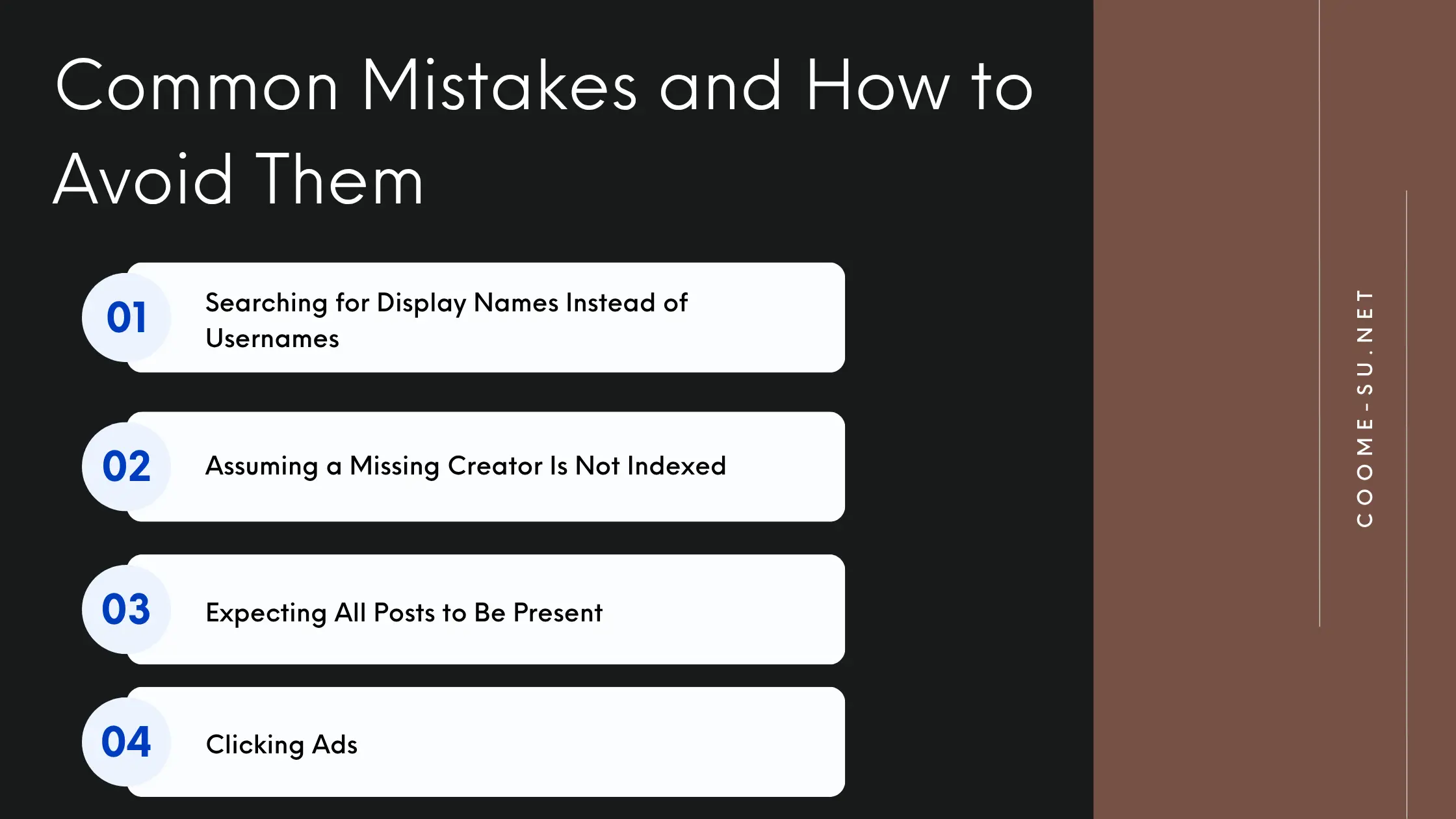
Searching for Display Names Instead of Usernames
The most common search failure is using a creator display name when the platform has indexed them by username. Display names on OnlyFans and Fansly are often different from the username in the profile URL. Check the creator URL on the source platform and use the username from there.
Assuming a Missing Creator Is Not Indexed
A creator not appearing in search results does not always mean they have not been indexed. The search function can be inconsistent with certain character sets and unconventional usernames. Try browsing the source platform section directly and scrolling through the alphabetical listing if search returns nothing.
Expecting All Posts to Be Present
The importer only indexes posts that were accessible under the session cookie submitted at the time of import. Posts added after the last import, and posts that were behind a higher subscription tier than the submitting user held, will not be indexed. A creator profile on Coomer is almost never a complete archive of everything that creator has ever posted.
Clicking Ads
The advertising on Coomer is the primary source of risk on the platform. Avoid clicking any advertisement, any popup, any notification prompt, and any download prompt that appears while using the platform. The content you are looking for is in the directory. Everything else that appears as a clickable overlay is advertising infrastructure and should be ignored entirely.